

 See My Latest Article on HelloNation

Technology can make everyday life easier for older adults, especially when devices are set up for comfort rather than speed. A phone, tablet, television, or computer can support communication, entertainment, safety, transportation planning, and connection with family.
The goal is not to learn every feature. It is to choose a few useful tools, adjust them to match individual needs, and practice until they feel familiar.
Which technology tasks are most useful to learn first?
The most helpful starting points are making calls, sending messages, adjusting the screen, finding information, and recognizing common safety warnings. These skills apply across many devices.
A simple learning sequence can include:
- Answering and ending a phone or video call
- Adding important contacts
- Enlarging text and icons
- Adjusting volume and screen brightness
- Taking and viewing photos
- Using voice commands
- Connecting to home Wi-Fi
- Charging the device safely
- Identifying suspicious messages
Learning one task at a time reduces frustration. A short practice session of 10 to 15 minutes is often more effective than trying to understand an entire device in one sitting.
How can a phone be easier to see and use?
Most smartphones and tablets have accessibility settings that can improve comfort without changing the basic functions. Text size, display contrast, touch sensitivity, and sound can usually be adjusted.
Useful changes include:
- Increase text size for messages, menus, and websites.
- Make icons larger and place frequently used apps on the first screen.
- Turn on captions for videos and phone calls when available.
- Increase the ringtone volume or choose a sound that is easy to recognize.
- Use a brighter display during the day and a lower brightness level at night.
- Turn on a setting that confirms when a button has been tapped.
- Reduce unnecessary notifications so the screen is less distracting.
A device should be easy to read without requiring squinting or holding it unusually close. If hands are less steady, a stylus or a case with a textured grip may make tapping easier.
In homes where winter heating dries the air, hands may become more prone to cracking or discomfort. A device that requires repeated swiping or small precise movements may be harder to use during those periods, so voice commands and larger buttons can be especially helpful.
What are voice commands, and how can older adults use them?
Voice commands allow a person to speak a request instead of typing or tapping. They can be useful for setting reminders, checking the weather, starting a timer, finding a phone, or calling a saved contact.
Examples include:
- “Set a reminder for my medication at 8 p.m.”
- “Call my daughter.”
- “Set a timer for 10 minutes.”
- “What is the temperature outside?”
- “Read my new messages.”
- “Add milk to my grocery list.”
Voice tools are not perfect. They may misunderstand names, background conversations, accents, or television noise. It is wise to confirm the result before relying on a reminder, message, or navigation instruction.
For privacy, avoid speaking sensitive information aloud in shared spaces. Voice assistants may also respond to nearby conversations if their listening features are enabled.
How can video calls feel less intimidating?
Video calls become easier when the process is reduced to a few repeatable steps. Keep the device on a stable surface at eye level, use good lighting from the front, and place the camera where the person does not need to hold it.
Before a call:
- Charge the device.
- Check that the microphone is not muted.
- Wipe the camera lens.
- Sit near a light source, but avoid having a bright window directly behind.
- Close unrelated apps or notifications.
- Keep a written note with the basic call steps.
A practice call with a trusted family member can help. Many people find audio-only calls more comfortable at first. Video can then be added once answering, muting, and ending the call feel familiar.
During a power outage or severe storm, internet-based calls may not work normally. Keeping a charged mobile phone and knowing how to place a regular phone call provides a useful backup.
What are easy and enjoyable ways to use technology?
Technology does not have to be focused on chores. It can support hobbies, memories, and social connection.
Older adults may enjoy:
- Listening to favorite music or recorded books
- Watching exercise, cooking, gardening, or craft demonstrations
- Taking photos of grandchildren, pets, plants, or seasonal changes
- Playing puzzles, card games, or word games
- Organizing digital photographs into albums
- Reading newspapers, library materials, or public information
- Joining a family group conversation by message or video
- Using a tablet to follow a recipe while cooking
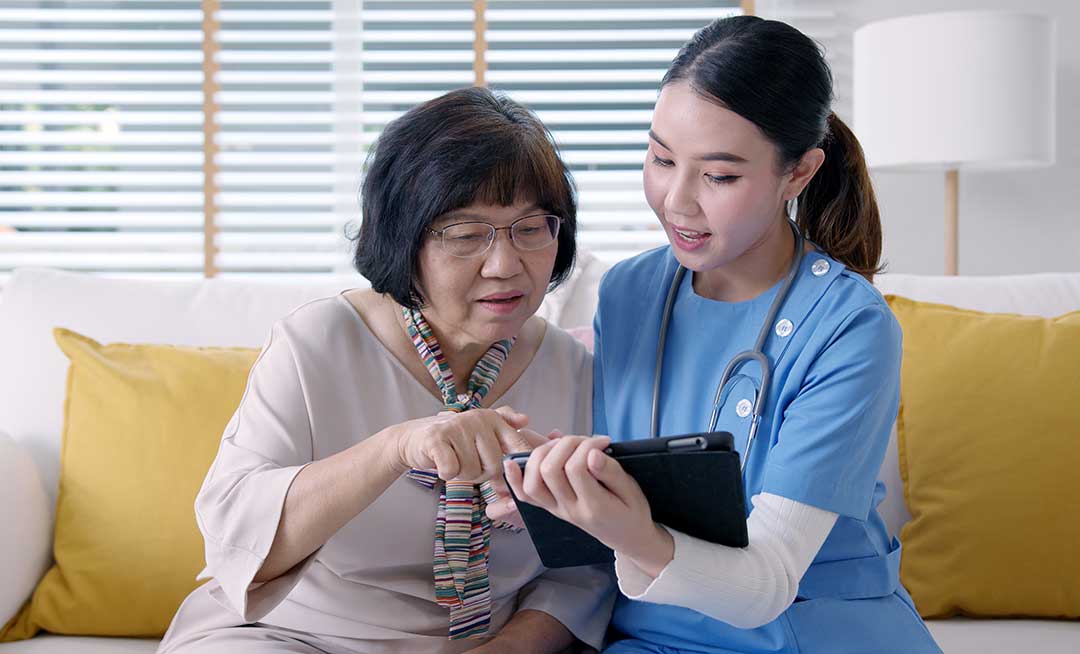
For residents in Richmond, seasonal changes can provide simple technology projects. Photos of spring gardens, summer walks, autumn leaves, or winter weather can be organized into albums and shared with family members. This gives a device a clear, enjoyable purpose rather than making it feel like another obligation.
How can older adults avoid common online scams?
A healthy amount of caution is more useful than fear. Unexpected messages that create urgency, request secrecy, or ask for payment deserve extra attention.
Common warning signs include:
- A message claiming an account will close immediately
- A caller demanding gift cards, cryptocurrency, or unusual payment
- A request for a password, security code, or full Social Security number
- A message from an unfamiliar person containing a link
- A caller pretending to be a relative in an emergency
- A request to let someone control the computer remotely
Do not click a link or provide information simply because a message looks official. Instead, pause and independently contact the person or organization through a known phone number or a previously used website.
Family members can agree on a simple safety phrase for unusual requests. It also helps to create a household rule: no financial decision has to be made during an unexpected phone call.
How should passwords and personal information be managed?
Each important account should have a different password. Long combinations of words are often easier to remember than short, complicated strings. A password manager may help organize them, but the main account password should never be shared casually.
Additional protections include:
- Turn on two-step verification when available.
- Keep the phone and tablet updated.
- Use a screen lock.
- Avoid saving payment information on unfamiliar websites.
- Review account alerts for unexpected sign-ins.
- Keep a written emergency list of important phone numbers in a secure place.
A trusted family member may assist with technology, but assistance should not require unrestricted access to every account. Privacy and independence can coexist with support.
What is the best way to practice without becoming overwhelmed?
Choose one device and one goal. For example, practice making a video call on a tablet before learning online banking, photo storage, or navigation.
Create a small reference card with plain instructions such as:
1. Wake the screen.
2. Tap the green phone symbol.
3. Choose the contact.
4. Tap the video symbol.
5. Tap the red button to end the call.
Keep the card near the device, use the same words each time, and repeat the task on several different days. Forgetting steps is normal; repetition is part of learning.
Technology works best when it supports a person’s existing routines. A few carefully chosen features can make communication, entertainment, and daily planning more comfortable without requiring someone to become an expert.